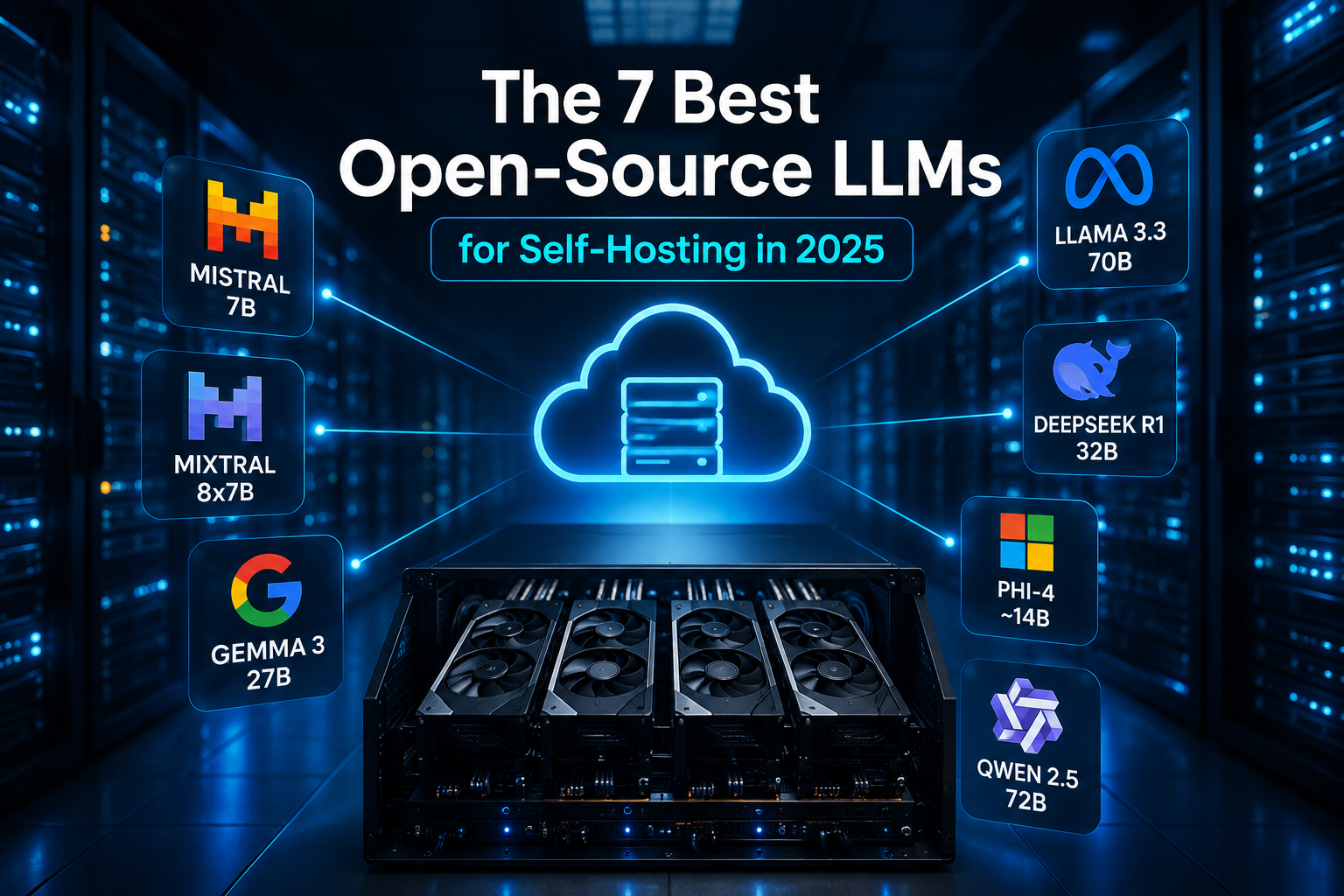
Whether you're tired of API rate limits, concerned about sending sensitive data to third-party servers, or just want a model that works offline, running AI locally is now genuinely practical. This guide covers the three main tools, the hardware you actually need, and the steps to get a model running today.
Why Run AI Models Locally
The case is straightforward:
- Privacy: your prompts and documents never leave your machine
- Cost: no per-token billing, no subscription tiers
- Control: choose your model, quantization level, context length, and system prompt without platform restrictions
- Reliability: no outages, no deprecations, no rate limits
The trade-off is hardware. Cloud APIs offload compute to someone else's GPU cluster. Locally, that's your problem.
Hardware Requirements
Before downloading anything, be honest about your machine.
RAM and VRAM
The practical rule: the model must fit in memory. For GPU inference, that means VRAM. For CPU-only inference, system RAM.
| Model Size | Quantization | VRAM Needed | CPU RAM (CPU-only) |
|---|---|---|---|
| 7B | Q4KM | ~4–6 GB | 8–12 GB |
| 13B | Q4KM | ~8–12 GB | 16–24 GB |
| 32B | Q4KM | ~20–24 GB | 32+ GB |
| 70B | Q4KM | 40–48 GB | 64+ GB |
CPU-only inference works, but expect 2–8 tokens/second on a 7B model — usable for batch tasks, painful for interactive chat.
Platform Notes
- NVIDIA: best ecosystem support across all three tools; RTX 3060 12 GB is a solid entry point
- Apple Silicon (M-series): unified memory counts as VRAM; an M2 Pro with 32 GB can comfortably run 13B models; MLX acceleration is built into Ollama
- AMD: ROCm 6.1 support in Ollama; improving but still behind NVIDIA in compatibility
- Windows CPU: AVX2 support required for LM Studio; check with
wmic cpu get captionin PowerShell
---
The Three Tools
Ollama — Best for Developers and CLI Workflows
Ollama is the fastest path from zero to a running model. It installs as a local server on port 11434, manages model downloads automatically, and exposes an OpenAI-compatible REST API out of the box.
Install (macOS/Linux):
curl -fsSL https://ollama.com/install.sh | shWindows: download the installer from ollama.com/download/windows. A native desktop app launched in mid-2025.
Run your first model:
ollama run llama3This pulls the model if not cached, then drops you into an interactive chat. To pre-download without running:
ollama pull qwen3:8bUse the API:
curl http://localhost:11434/v1/chat/completions \
  -H "Content-Type: application/json" \
  -d '{"model": "llama3", "messages": [{"role": "user", "content": "Hello"}]}'
This endpoint is OpenAI-compatible, so you can point existing tools (Open WebUI, Continue.dev, LangChain) at http://localhost:11434 with minimal config changes.
Notable 2025 features: Thinking Mode for DeepSeek and Qwen3 reasoning models, speculative decoding (roughly 2× speed on multi-GPU setups), structured JSON output, and streaming tool calls. Default quantization is Q4KM as of v0.6.0.
Verdict: If you're a developer integrating local AI into an app or workflow, Ollama is the right default. No GUI complexity, excellent API, and the widest model library.
---
LM Studio — Best for GUI Users and Experimentation
LM Studio is a desktop application with a full model browser, drag-and-drop chat interface, and built-in RAG support. It's the right tool if you want to explore models visually without touching a terminal.
Install: download from lmstudio.ai for macOS, Windows, or Linux (ARM Linux added in 2025).
Key workflow:
- Open the Discover tab and search for a model (e.g.,
Phi-4,Mistral 24B) - Select a GGUF variant that fits your VRAM
- Load it into the chat interface or enable the local server
LM Studio's local server now supports three API formats: OpenAI-compatible, its own native REST API (/api/v1/*), and an Anthropic-compatible API (added in v0.4.1). That last one is useful if you're testing code written against Claude's API.
The Python SDK (pip install lmstudio) and JS/TS SDK are both production-stable. For headless or CI use, the llmster daemon runs without the GUI.
Commercial use is free as of 2025 — no form, no license key.
Verdict: Best for non-developers, researchers, or anyone who wants to compare models quickly without writing code. The model browser alone saves significant time.
---
llama.cpp — Best for Power Users and Edge Deployments
llama.cpp is the C++ inference engine that both Ollama and LM Studio use under the hood. Running it directly gives you maximum control: exact quantization flags, custom sampling parameters, Vulkan/Metal/CUDA backend selection, and the ability to embed it in your own applications.
Build from source (Linux/macOS with CUDA):
git clone https://github.com/ggerganov/llama.cpp
cd llama.cpp
cmake -B build -DGGML_CUDA=ON
cmake --build build --config Release -j$(nproc)
Run a GGUF model:
./build/bin/llama-cli -m ./models/phi-4-Q4_K_M.gguf -p "Explain transformers" -n 512Download GGUF files directly from Hugging Face (search for GGUF in any model repo). Quantization formats to know:
| Format | Quality | VRAM Use | Use When |
|---|---|---|---|
| Q4KM | Good | Low | Default choice |
| Q5KM | Better | Moderate | Extra VRAM available |
| Q8_0 | Near-lossless | High | Benchmarking, quality-critical |
| F16 | Full precision | Very high | Fine-tuning prep |
Verdict: Not the right starting point unless you have a specific reason — custom backend, embedded deployment, or you need to squeeze every token of performance out of constrained hardware.
---
Tool Comparison

| Ollama | LM Studio | llama.cpp | |
|---|---|---|---|
| Ease of setup | ★★★★★ | ★★★★☆ | ★★☆☆☆ |
| GUI | Basic (2025 app) | Full desktop app | None |
| API compatibility | OpenAI | OpenAI + Anthropic | Manual / custom |
| Model management | Automatic | Browser + manual | Manual |
| Control level | Medium | Medium | Maximum |
| Best for | Devs, integrations | GUI users, exploration | Power users, edge |
---
Which Models to Start With
- 4–8 GB VRAM: Phi-4 (4B), Llama 3.2 3B, Gemma 3n — fast, capable for most tasks
- 12–16 GB VRAM: Qwen3-8B, Mistral 7B — better reasoning, still snappy
- 24 GB VRAM: Mistral 24B, DeepSeek-R1 distills — strong coding and reasoning
- 40+ GB or multi-GPU: Llama 3.3 70B, Qwen3-32B — near-frontier quality locally
For reasoning tasks, Qwen3 and DeepSeek-R1 distillations punch well above their parameter count. For coding, Phi-4 is surprisingly capable at 4B.
---
Common Pitfalls
Model too large for VRAM: Ollama and LM Studio will fall back to CPU offloading, which is slow. Check VRAM before downloading a 13B model on a 6 GB card.
Slow generation on CPU: Expect 2–5 tokens/second. This is normal. Use a smaller model or add a GPU.
Ollama not responding: Check ollama serve is running. On Linux, systemctl status ollama confirms the service state.
Wrong quantization: Q4KM is the right default. Q4_0 is older and slightly lower quality for the same size. Avoid it unless a specific tool requires it.
Context length limits: Local models default to shorter context windows than their cloud counterparts. In Ollama, set num_ctx in a Modelfile or via the API parameter to extend it — at the cost of more VRAM.
---
Bottom Line
Running AI models locally is no longer a hobbyist experiment — it's a practical choice for privacy-sensitive work, cost-conscious builders, and anyone who needs reliable offline inference.
Start with Ollama if you're a developer. One install command, OpenAI-compatible API, and a model library that covers 95% of use cases. Use LM Studio if you want a GUI and don't want to touch the terminal. Drop down to llama.cpp only when you need control that the higher-level tools don't expose.
For most people on modern hardware, a Q4KM 7–8B model runs well on a mid-range GPU and delivers genuinely useful results. The gap between local and cloud has narrowed considerably — and for many workloads, it's closed entirely.
This article was drafted with AI assistance, reviewed and edited by a human editor, and fact-checked against the provided research sources; version numbers are noted as approximate where official release pages could not be fully confirmed.