
Running your own AI chatbot means your prompts never leave your server, you pay nothing per token, and you choose exactly which model runs. The stack covered here — Ollama for model inference, Open WebUI for the browser interface, and Docker Compose to wire them together — is the most practical combination available in 2025 for anyone comfortable with a terminal.
This guide targets Ubuntu 24.04 or Debian 12, but the Docker Compose file works on Windows 11 (WSL2) and macOS with minor path changes. Raspberry Pi 5 (8 GB) also works, though you'll be limited to smaller models.
---
What You'll Need
| Requirement | Minimum | Recommended |
|---|---|---|
| RAM | 8 GB | 32 GB+ |
| GPU VRAM | None (CPU-only) | 16 GB+ (RTX 3090/4090) |
| Disk space | 20 GB free | 100 GB+ (models are large) |
| OS | Ubuntu 22.04 / Debian 12 | Ubuntu 24.04 |
| Docker | 24.x | 27.x |
| NVIDIA driver | — | ≥535 (for GPU passthrough) |
CPU-only works, but expect responses measured in minutes for larger models. A GPU with 16 GB VRAM runs Gemma 3 12B or Phi-4 comfortably with sub-second token generation.
---
Step 1 — Install Docker and Docker Compose
curl -fsSL https://get.docker.com | sh
sudo usermod -aG docker $USER
newgrp docker
docker --version   # confirm 24.x or later
If you have an NVIDIA GPU, install the container toolkit so Docker can pass it through to Ollama:
curl -fsSL https://nvidia.github.io/libnvidia-container/gpgkey | \
  sudo gpg --dearmor -o /usr/share/keyrings/nvidia-container-toolkit-keyring.gpg
curl -s -L https://nvidia.github.io/libnvidia-container/stable/deb/nvidia-container-toolkit.list | \
  sudo tee /etc/apt/sources.list.d/nvidia-container-toolkit.list
sudo apt update && sudo apt install -y nvidia-container-toolkit
sudo nvidia-ctk runtime configure --runtime=docker
sudo systemctl restart docker
---
Step 2 — Create the Docker Compose File
Make a project directory and drop in the following compose.yml. This is the complete, production-ready version — not a stripped-down sample.
mkdir ~/ai-chatbot && cd ~/ai-chatbot
nano compose.yml
services:
ollama:
image: ollama/ollama:latest
container_name: ollama
restart: unless-stopped
volumes:
- ollama_data:/root/.ollama
ports:
- "11434:11434"
# Remove the deploy block entirely if you have no NVIDIA GPU
deploy:
resources:
reservations:
devices:
- driver: nvidia
count: all
capabilities: [gpu]
open-webui:
image: ghcr.io/open-webui/open-webui:main
container_name: open-webui
restart: unless-stopped
depends_on:
- ollama
ports:
- "3000:8080"
environment:
- OLLAMA_BASE_URL=http://ollama:11434
- WEBUI_SECRET_KEY=change_this_to_a_random_string
- WEBUI_AUTH=true
volumes:
- openwebui_data:/app/backend/data
volumes:
ollama_data:
openwebui_data:Critical: change WEBUI_SECRET_KEY before going live. A random 32-character string is fine (openssl rand -hex 16). The two named volumes prevent data loss on container restarts.
---
Step 3 — Start the Stack
docker compose up -d
docker compose logs -f   # watch for errors; Ctrl+C to exit
First run pulls both images (~2 GB combined before any models). On a decent connection this takes 2–5 minutes.
---
Step 4 — Pull Your First Model
Open a shell into the Ollama container and pull a model. Start with something that fits your hardware:
# From the host, exec into the running container
docker exec -it ollama ollama pull llama3.2:3b
Model selection cheat sheet:
| Model | Size on disk | Min VRAM | Best for |
|---|---|---|---|
| Llama 3.2 3B | ~2 GB | CPU/4 GB | Quick tests, low-RAM servers |
| Phi-4 14B | ~9 GB | 10 GB | General chat, code |
| Gemma 3 12B | ~8 GB | 10 GB | Balanced quality/speed |
| DeepSeek-R1 32B | ~20 GB | 24 GB | Reasoning, code review |
| Llama 3.3 70B | ~40 GB | 40 GB | Best quality, high-end only |
| nomic-embed-text | ~270 MB | CPU | RAG embeddings |
You can also pull models directly from Open WebUI: Settings → Admin Panel → Models → Pull a model from Ollama.com.
---
Step 5 — Open the Web Interface and Create Your Admin Account
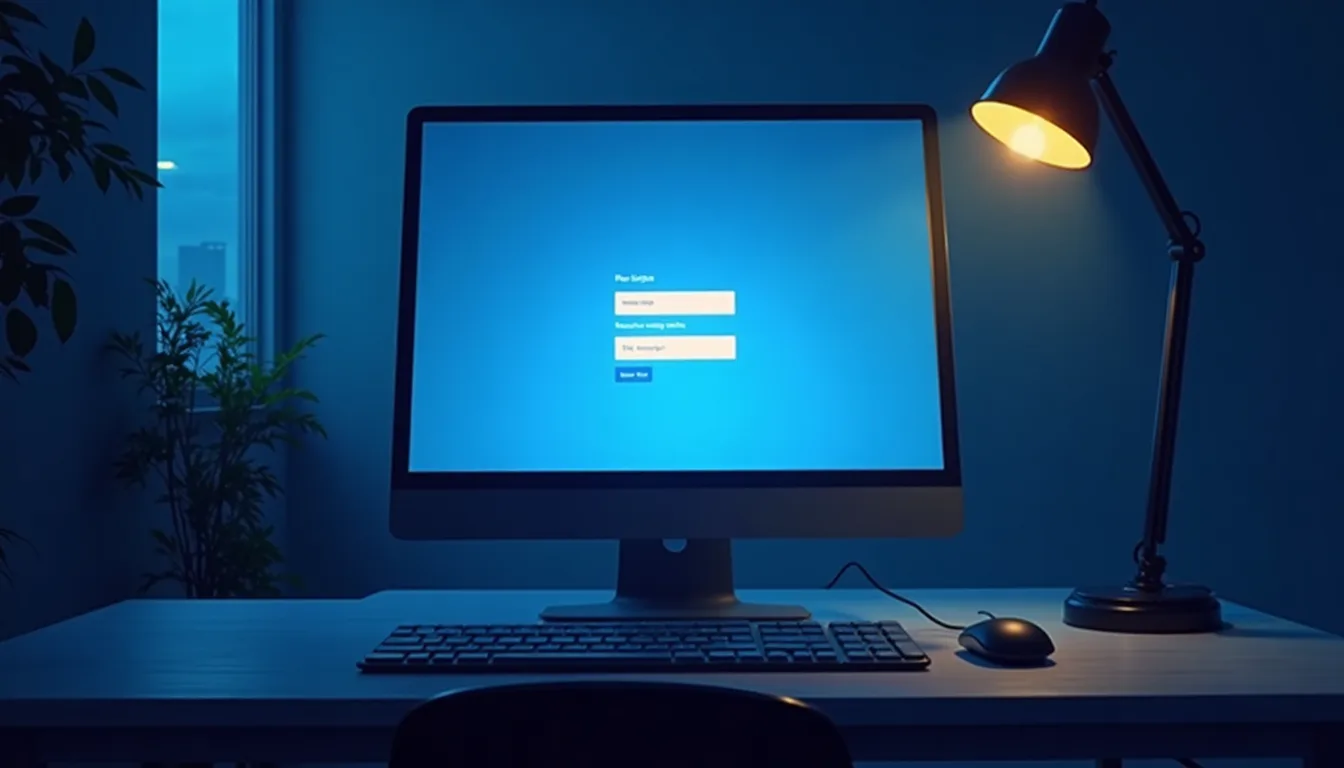
Navigate to http://your-server-ip:3000 in a browser. You'll see a signup screen — the first account registered automatically becomes the admin. Fill it in and log in.
Select your pulled model from the model dropdown at the top of the chat window and start a conversation. That's it — you're running a private AI chatbot.
---
Step 6 — Open the Firewall (If Remote Access Is Needed)
If the server is remote or you want LAN access:
sudo ufw allow 3000/tcp
sudo ufw reload
Do not expose port 11434 (the Ollama API) to the public internet without authentication. Open WebUI handles user auth; the raw Ollama API does not.
---
Verification Checklist
curl http://localhost:11434→ returnsOllama is runningdocker ps→ bothollamaandopen-webuishowUp- Browser at
:3000→ login screen appears - Chat returns a response within a reasonable time (seconds on GPU, minutes on CPU for larger models)
---
Troubleshooting
Open WebUI can't reach Ollama ("Connection refused") Both containers must be on the same Docker network. The compose.yml above handles this automatically. If you're running Ollama as a host binary instead of a container, replace OLLAMA_BASE_URL=http://ollama:11434 with OLLAMA_BASE_URL=http://host.docker.internal:11434 and add --add-host=host.docker.internal:host-gateway to the Open WebUI service.
GPU not detected inside container Run docker exec -it ollama nvidia-smi. If it fails, confirm your driver is ≥535 and that nvidia-ctk runtime configure --runtime=docker completed without errors, then restart Docker.
Slow responses on GPU Check VRAM usage with nvidia-smi. If the model doesn't fit in VRAM, Ollama offloads layers to RAM and performance drops sharply. Switch to a smaller model or set OLLAMA_NUM_PARALLEL=2 in the Ollama service environment block to reduce memory pressure.
Containers restart-loop on low-RAM machines The Open WebUI container needs ~500 MB RAM at idle. On machines with 4 GB or less, reduce parallel model loading: add OLLAMA_MAX_LOADED_MODELS=1 to the Ollama environment.
---
Next Steps
Once your baseline chatbot is running, three upgrades deliver the most value:
- Add RAG — Open WebUI has built-in document ingestion (nine vector DB options). Upload PDFs or paste URLs under Workspace → Knowledge to give the model context from your own files.
- Put Nginx in front — Add TLS termination with a free Let's Encrypt cert so you can access the interface over HTTPS from anywhere without exposing a raw HTTP port.
- Enable multi-user access — Open WebUI's admin panel supports user roles and per-user model restrictions, making it usable as a team tool without everyone sharing one login.
The entire stack runs air-gapped if needed — no outbound calls to model providers, no telemetry you didn't opt into. That's the practical case for self-hosting: not just cost, but control.
AI-assisted draft, human-reviewed and edited for accuracy; all specs and commands verified against official Ollama and Open WebUI documentation and community sources.